iPhone / iPad Mail Email Settings
- On your iPhone or iPad, open the Gmail app.
- Click the user icon in the top right.
- Click Add another account.
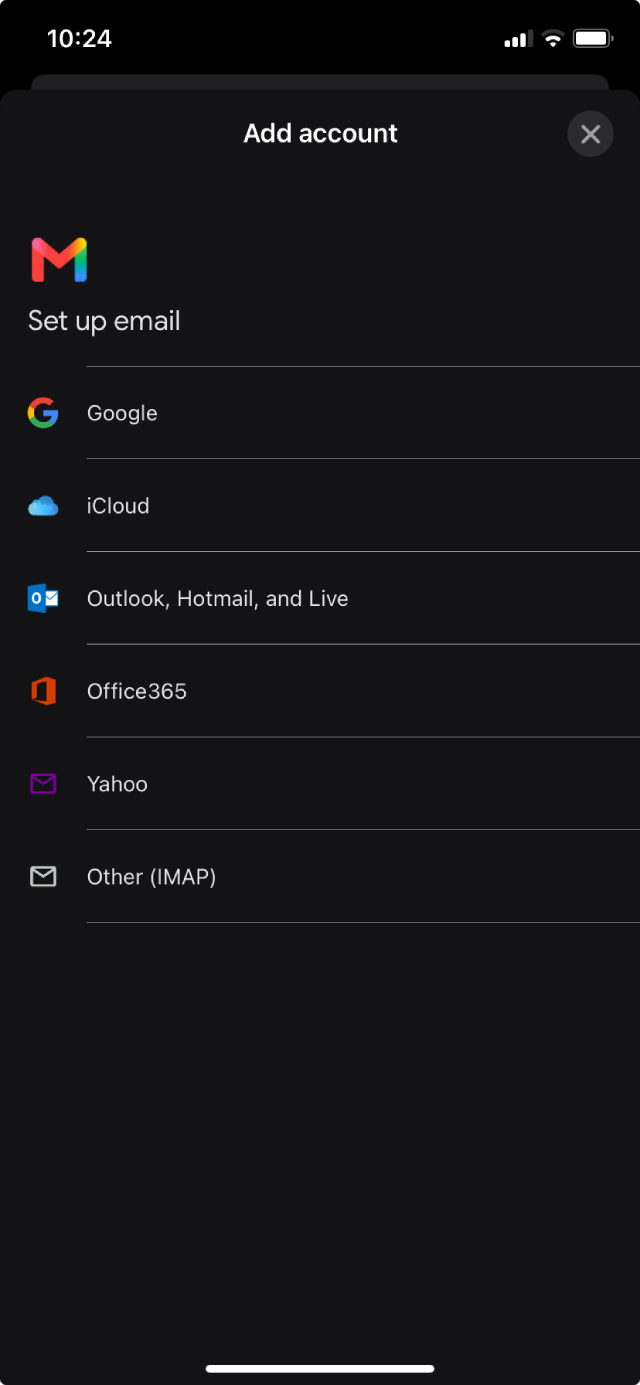
- At the bottom, clcik Other (IMAP).
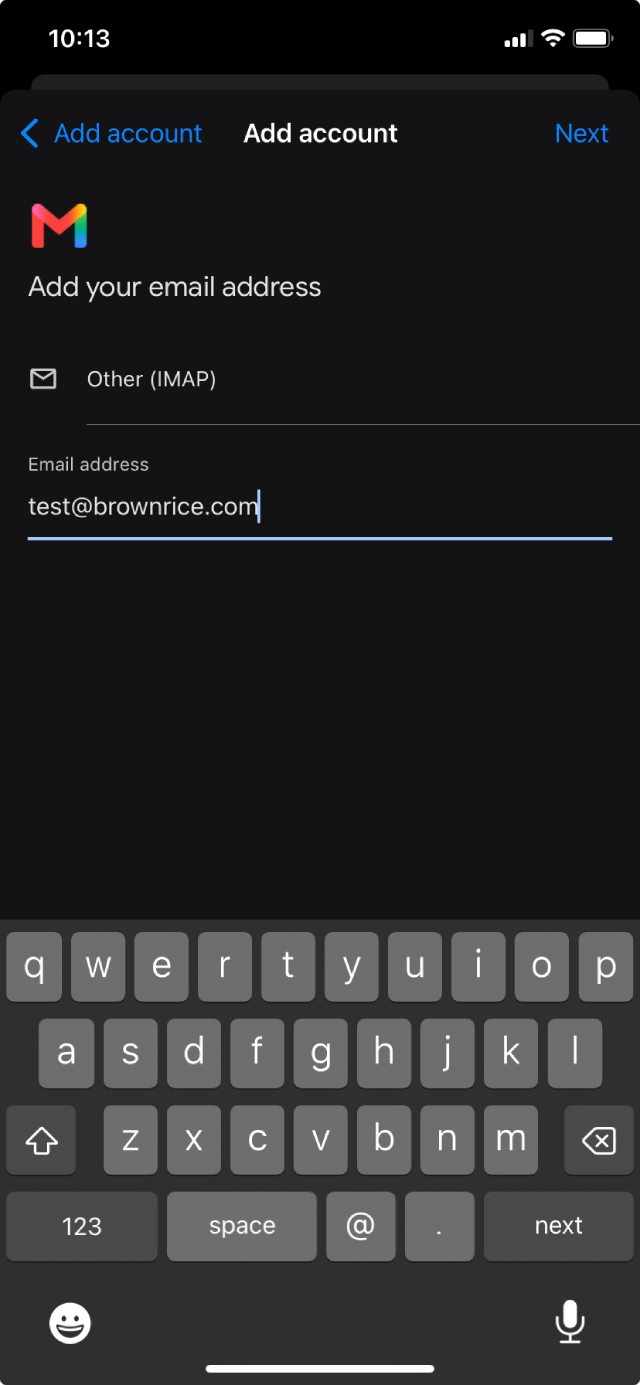
- Add your Brownrice email address.
- In the Email address field, enter your full email address (e.g., yourusername@brownrice.com).
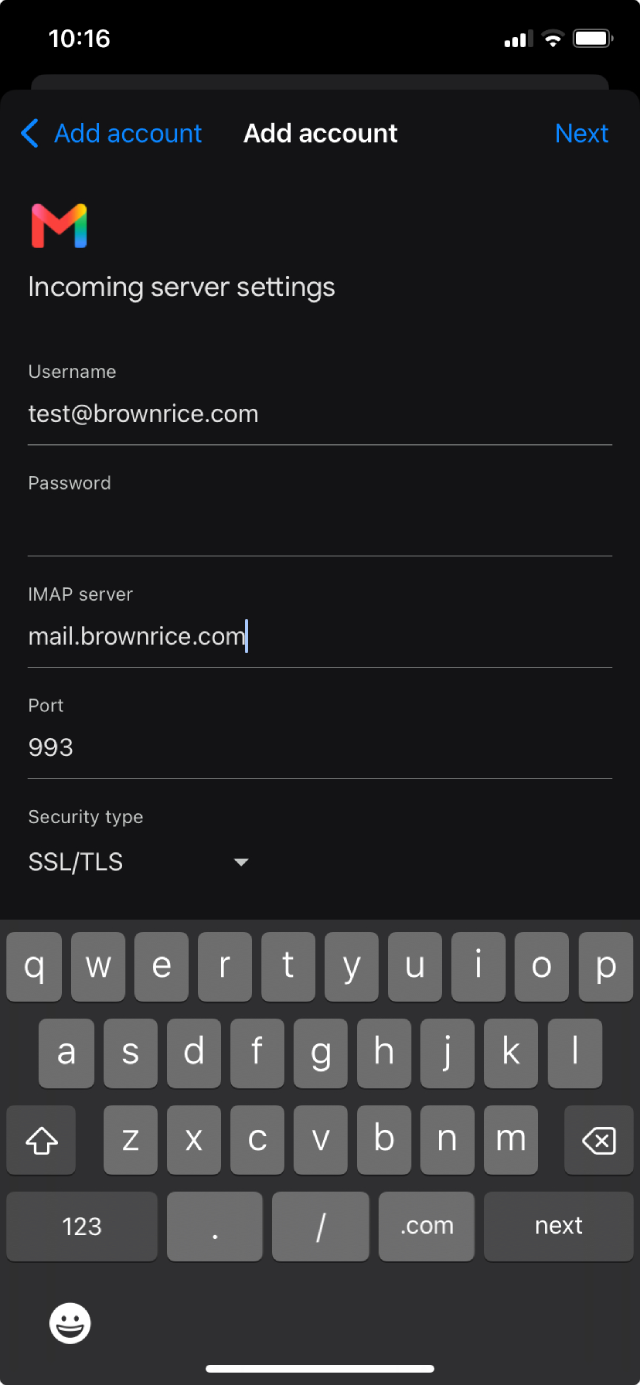
- Enter the Incoming server settings info.
- Your Username should be populated with your emaill address.
- In the Password field, enter your password (case-sensitive).
- Enter mail.brownrice.com in the IMAP server field.
- Click Next
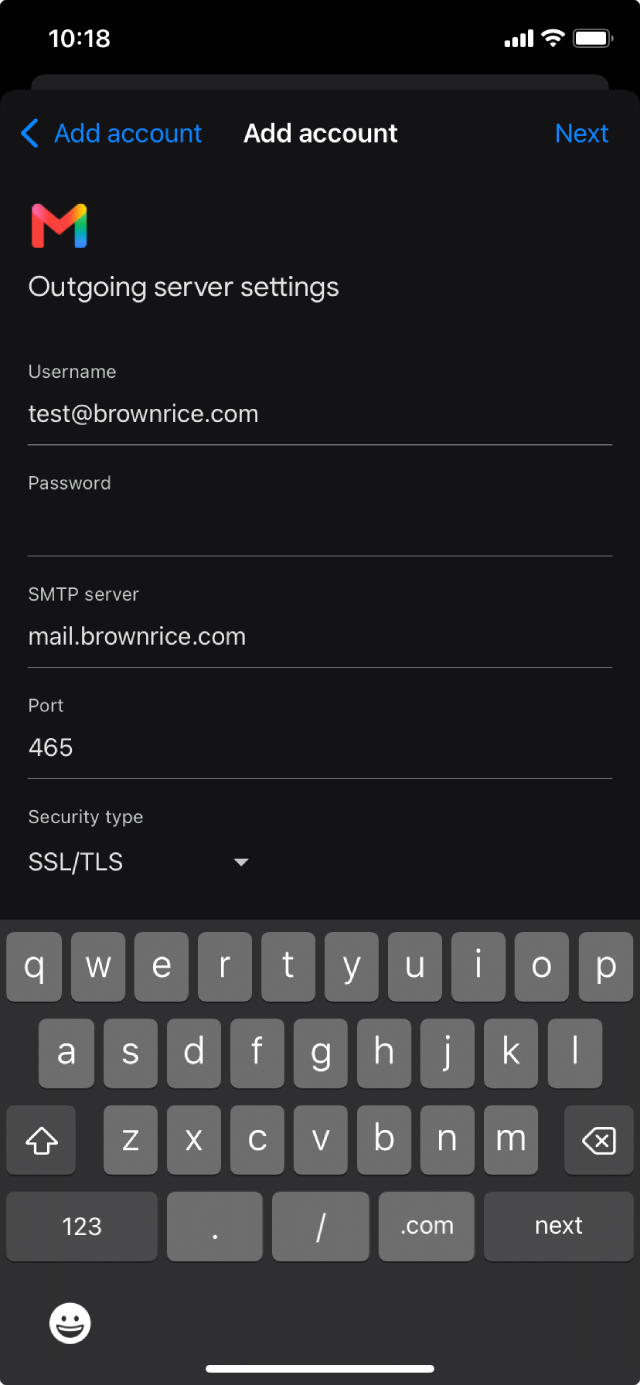
- Enter the Outgoing server settings info.
- In the Password field, enter your password (case-sensitive).
- Enter mail.brownrice.com in the SMTP server field.
- Click Next
- Your account is set up and email is on its way!
- Enter your name how you'd like it to be displayed on sent messages in the Your name
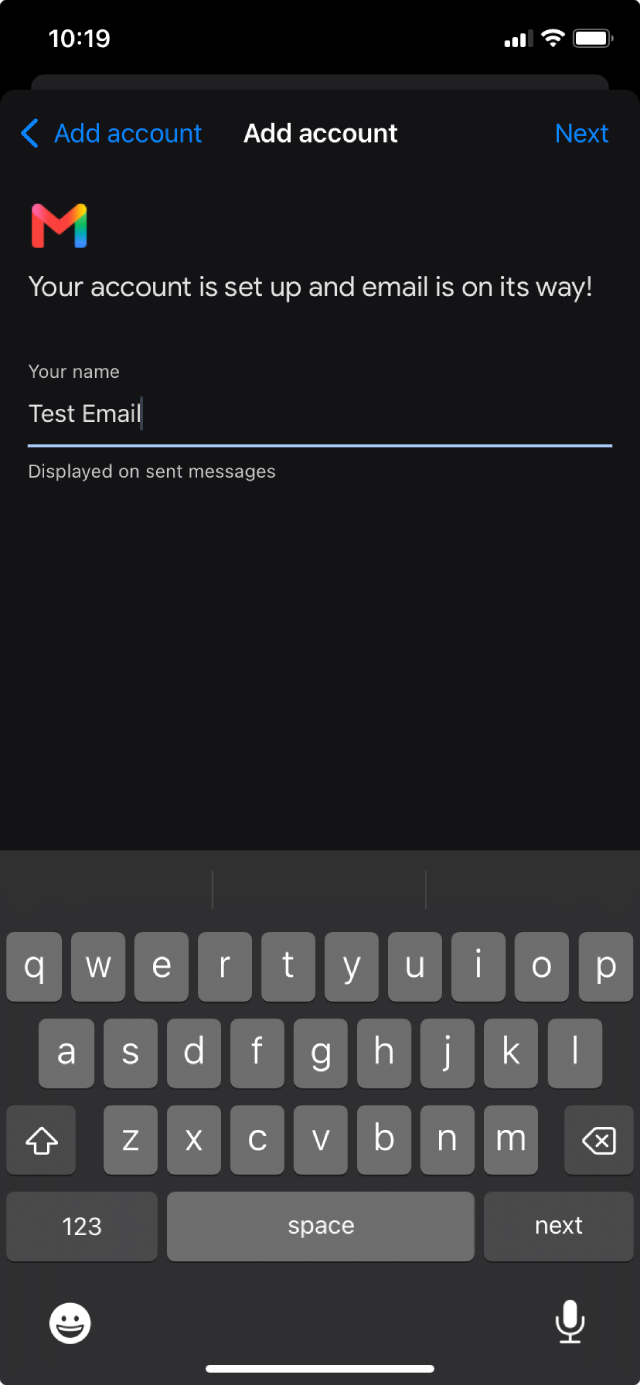
Voila! Setup is complete!
That's all the magic there is to it!
You are now ready to send and receive email using the Gmail app from your iPhone or iPad until the cows come home! Enjoy.