Configuring Samsung email app
- On your Samsung Android phone, open the email app.
- Go to your "apps" and tap on the icon that looks something like this:

- You'll be shown several options for what type of account you want to create. Choose Other.
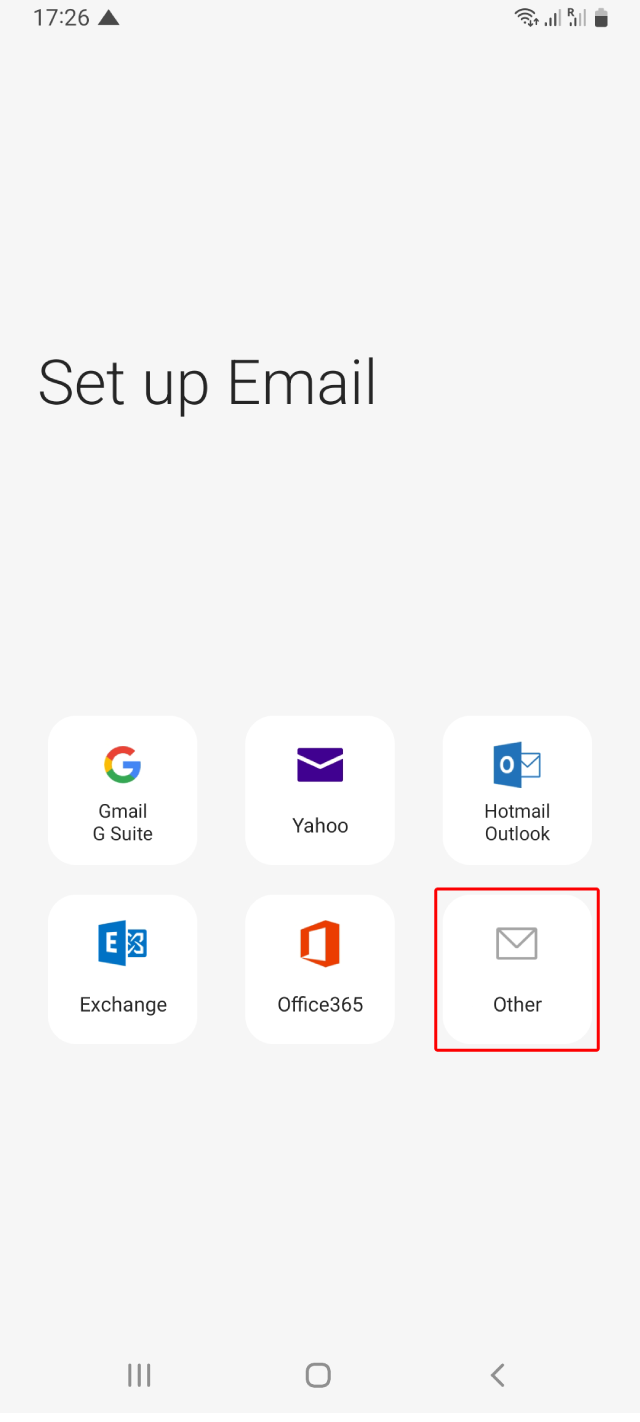
- Go to your "apps" and tap on the icon that looks something like this:
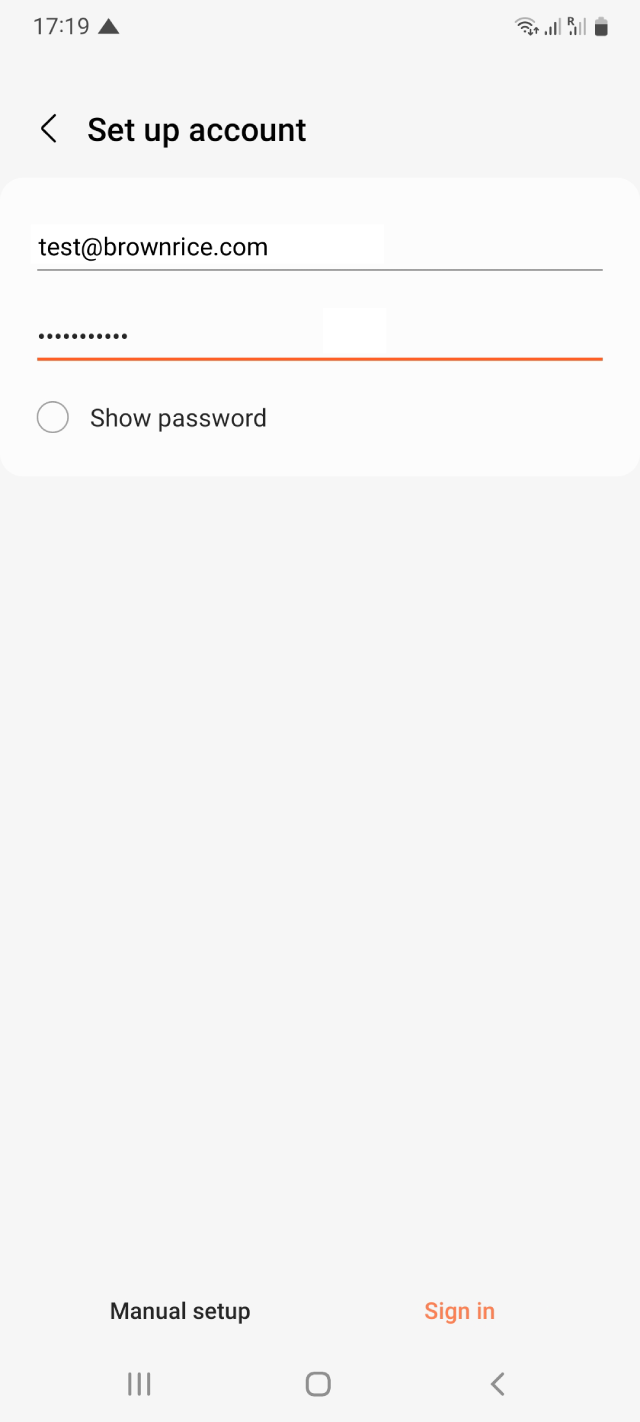
- Add your Brownrice email address.
- In the email field, enter your full email address (e.g., yourusername@brownrice.com).
- In the password field, enter your password (case-sensitive).
- Tap Sign In.
- Choose IMAP account.
IMAP is intended to work with multiple devices, and will synchronize your email between them. It also keeps a backup copy on our servers.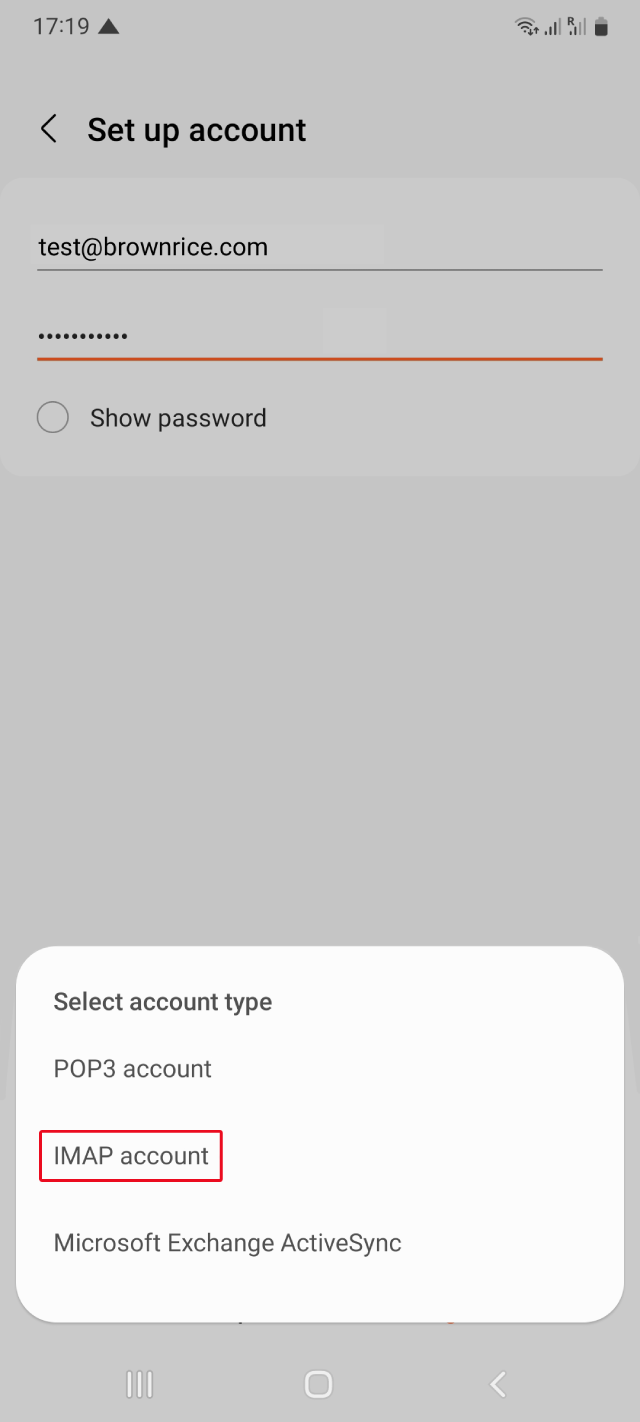
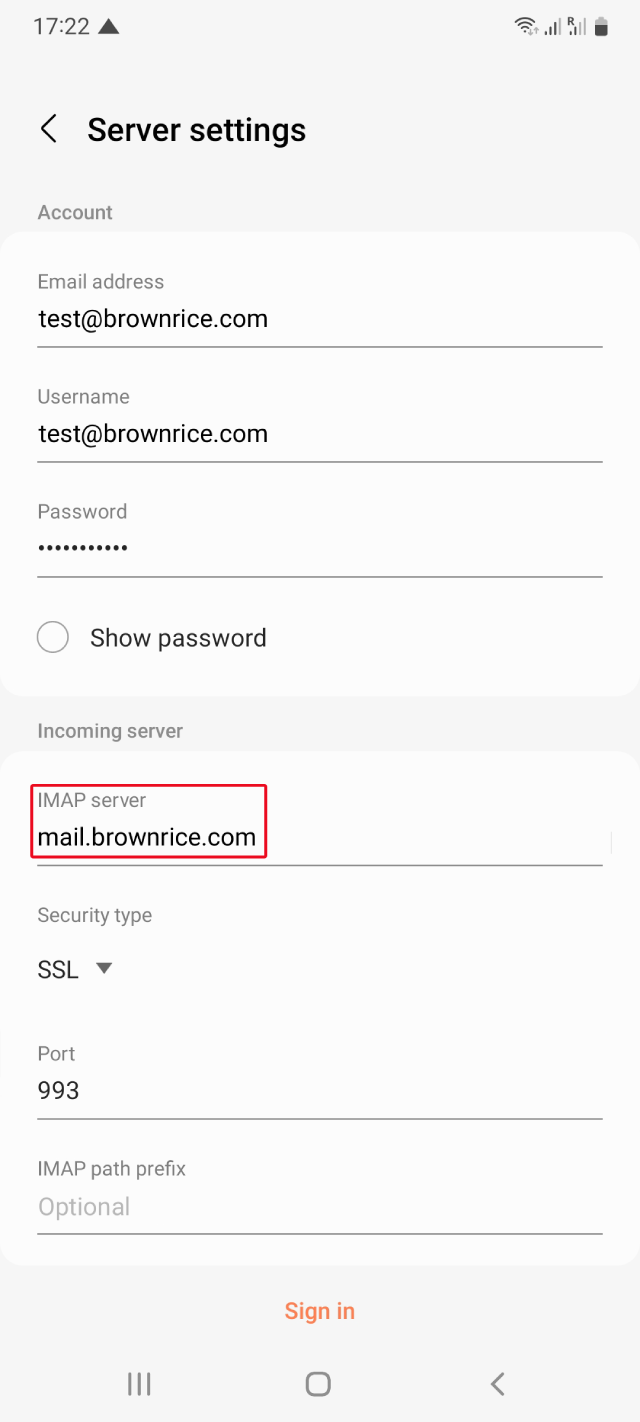
- Enter the Incoming server settings info.
- Your Email address, Username, and Password should be populated from the previous screen.
- Enter mail.brownrice.com in the Incoming server field.
- Tap Sign In.
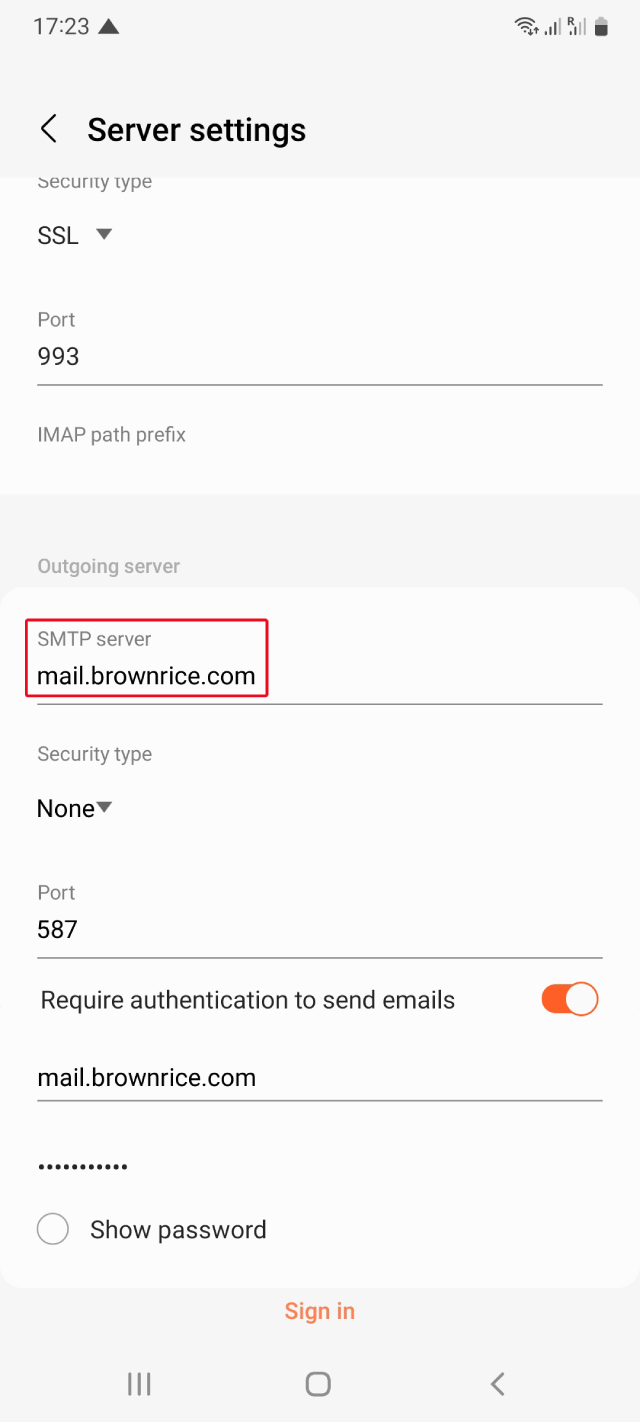
- Aside from username (your full email address again) and password, your outgoing settings should exactly match the ones shown here:
- Enter the Outgoing server settings info.
- Enter mail.brownrice.com in the SMTP server field with the Security type is set to None and Port to 587.
- Ensure Require authentication to send emails is checked (on) and enter your mail.brownrice.com and password.
- Tap Sign In.
Optional Settings
You can research and adjust these settings to fit your needs. The ones shown here are optimal for an account that receives a lot of email. If you choose a longer period to sync email, it may slow down features of your mail app such as the ability to search your inbox.
- Account options
- Select the Sync frequency.
- Check any options that apply.
Done! Your account is set up and email is on its way!