Mozilla Thunderbird Email Settings
Download Thunderbird here.
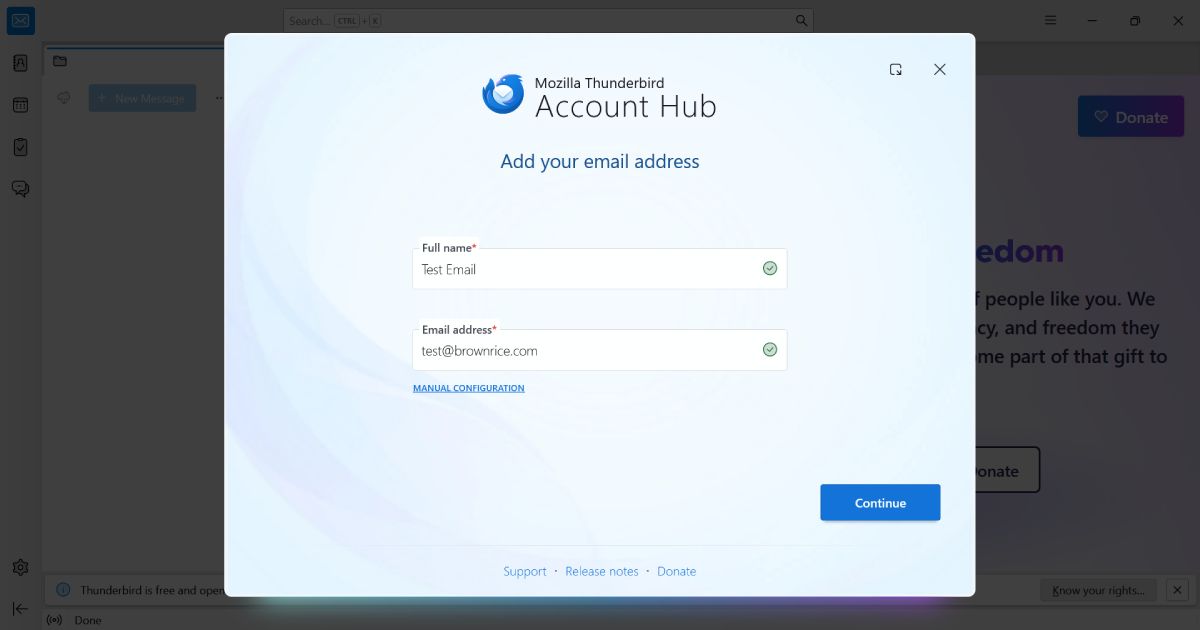
- Open Thunderbird and enter your full name and email address. Click Continue.
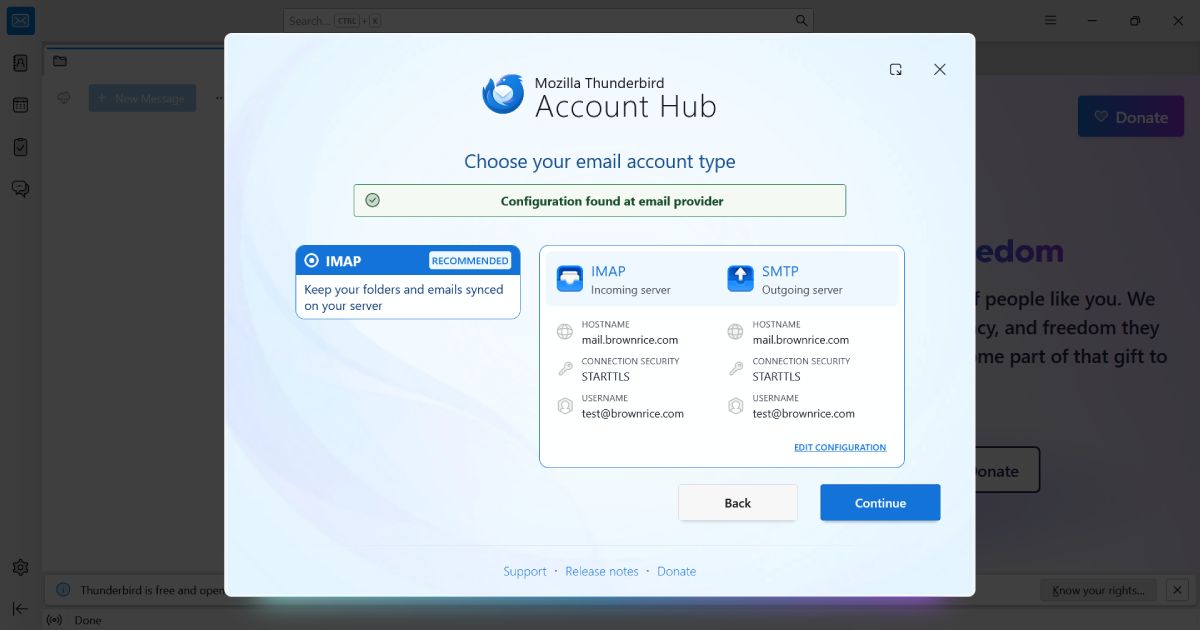
- Ensure IMAP is selected and confirm both the incoming and outgoing Server hostname are mail.brownrice.com. Click Continue.
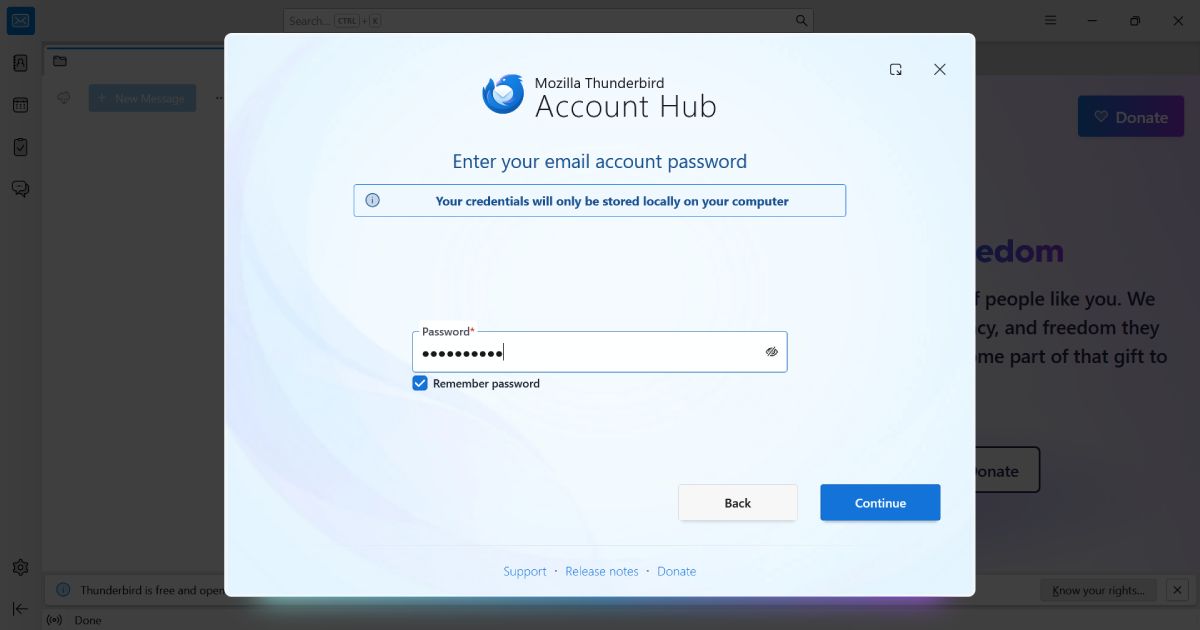
- Enter your email account password. Check "Remember password" if you don't want to enter your password every time you check for new messages. Click Continue.
- You may setup the optional features like Email signature or if you just want to start using your email, click Finish.
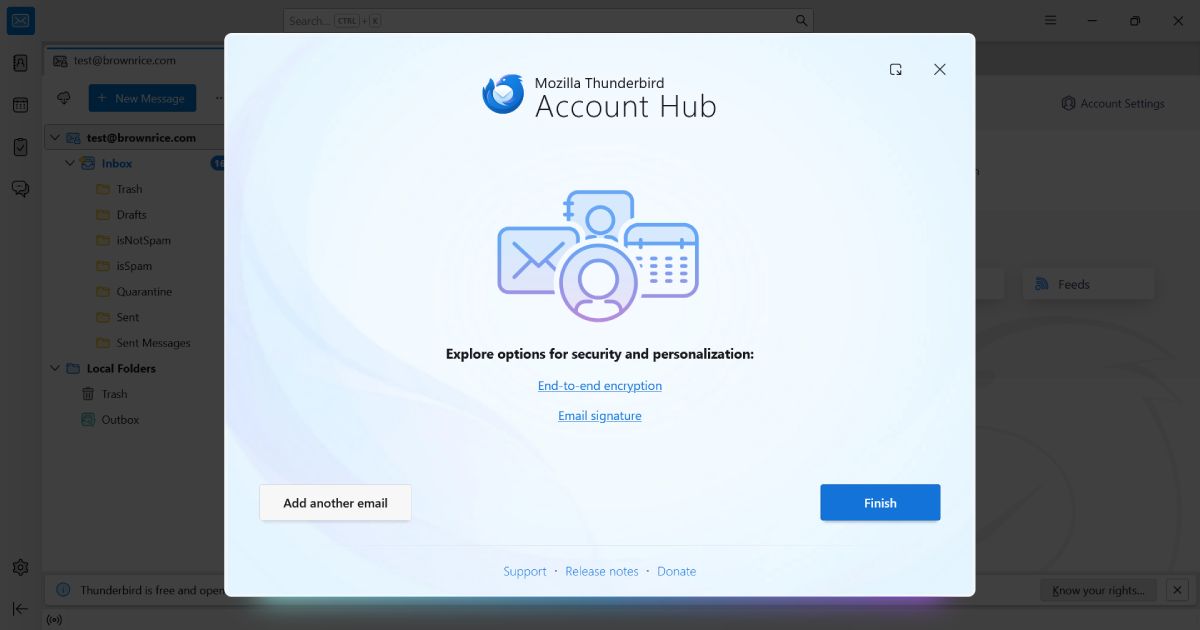
Ta-Da! You are now done and can start sending and receiving emails!
Here is how to setup Thunderbird with your server to contain Sent and Archives inside the Inbox rather than outside in Local Folders:
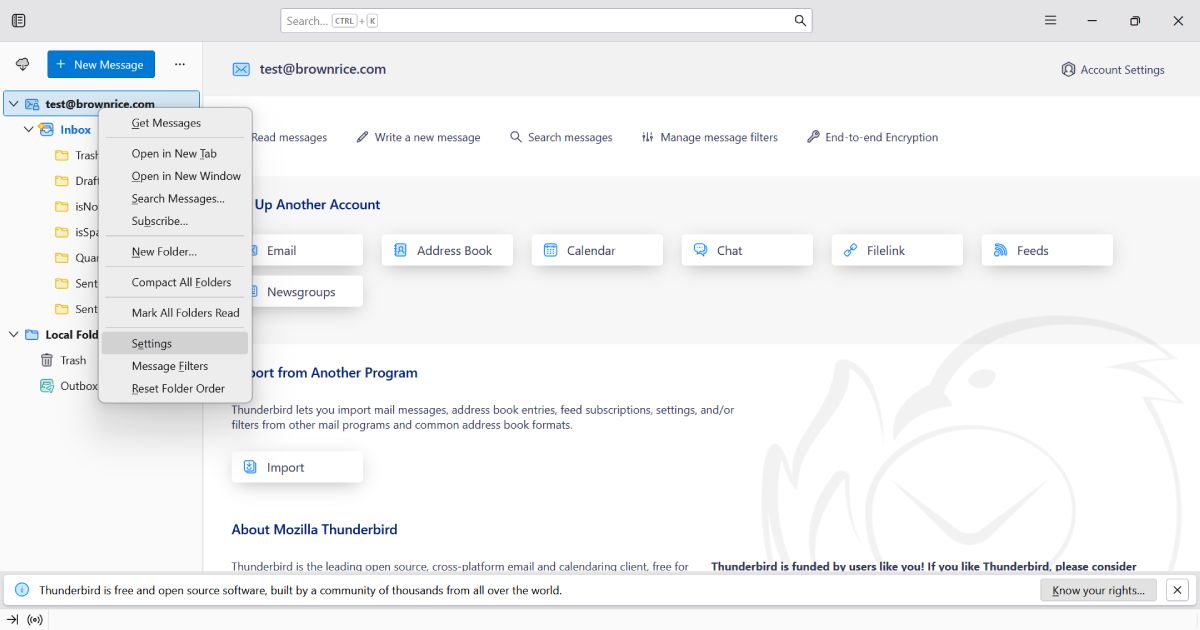
- Go to -> Inbox Panel & right-click your new account name (in the folder panel)
- Choose Settings
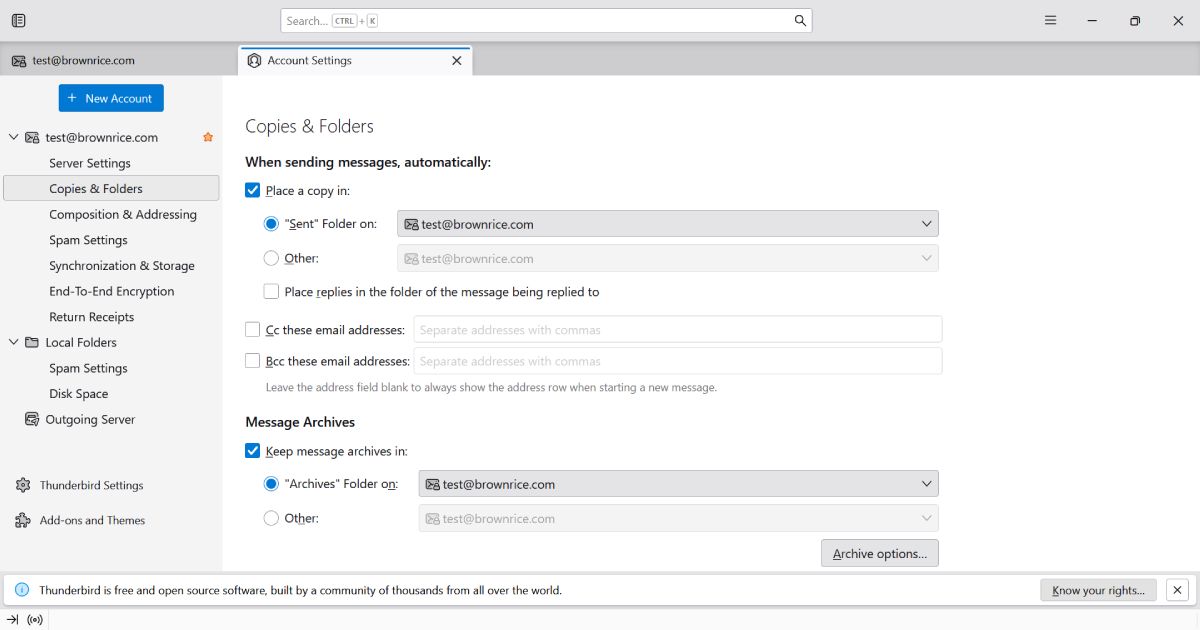
- In the Account Settings panel, go to -> Copies & Folders
- Under When sending messages, automatically, check Place a copy in:
- Choose Sent folder: username@domain.com
- Under Message Archives chose Keep message archives in: Archives Folder on: username@domain.com
- Restart Thunderbird for good measure, or right-click the account and choose Subscribe again just to refresh everything