iPhone iOS 26 / iPad iPad 26 Mail Email Settings
- On your iPhone or iPad, select Settings.
- Select Apps.
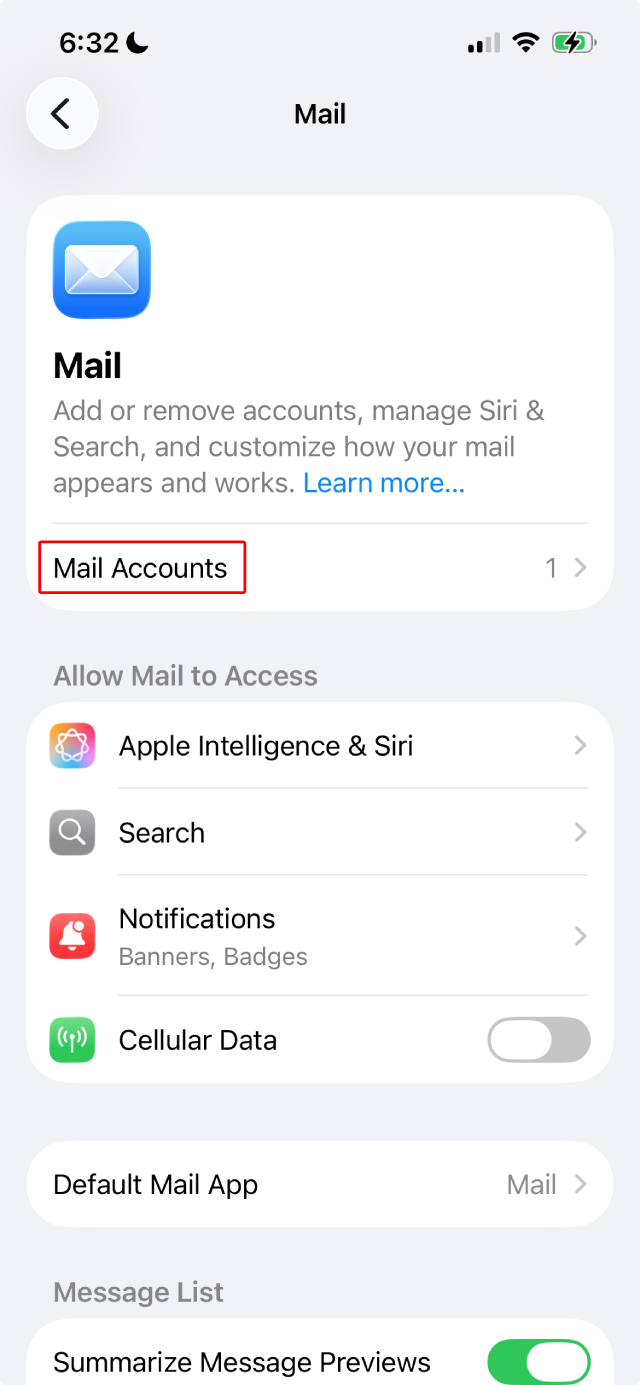
- Select Mail.
- Select Mail Accounts.
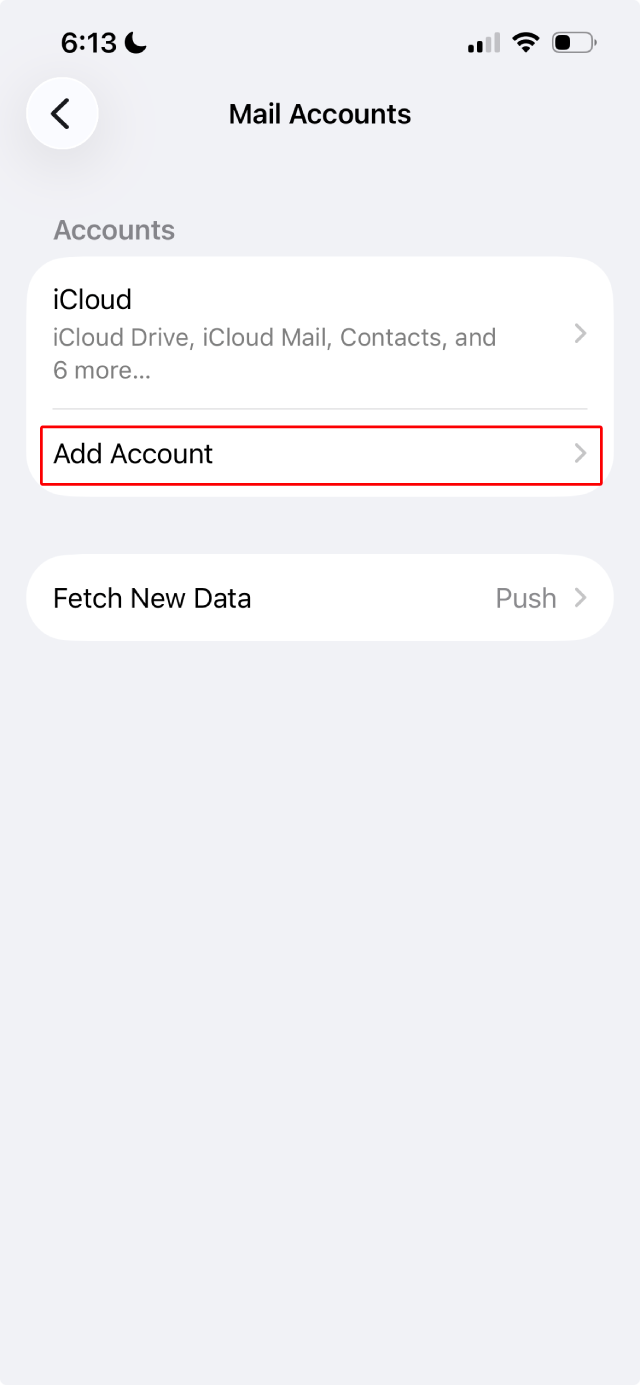
- Select Add Account.
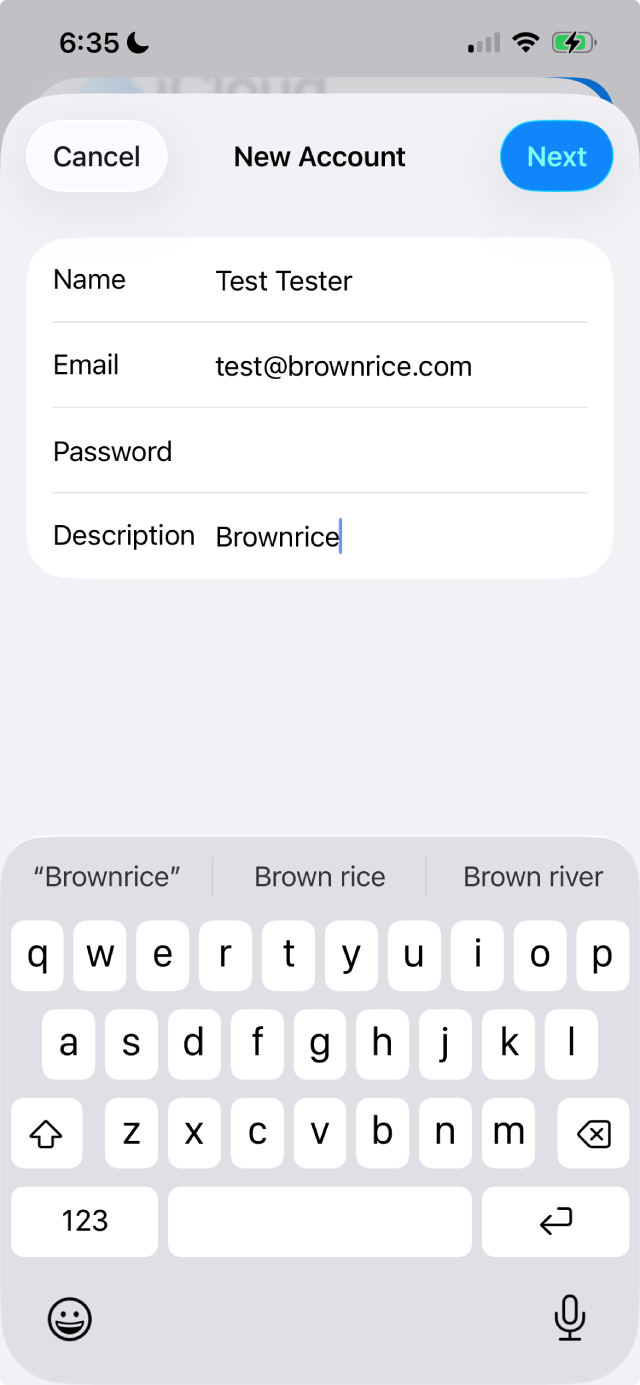
- On the New Account screen:
- In the Name field, enter your full name.
- In the Email field, enter your full email address (e.g., yourusername@yourdomain.com).
- In the Password field, enter your password (case-sensitive).
- Select Next.
- The IMAP option should be the default.
- Scroll down to the Incoming Mail Server and in the Host Name field, enter mail.brownrice.com.
- In the User Name field, enter your full email address.
- In the Password field, enter your password (case-sensitive).
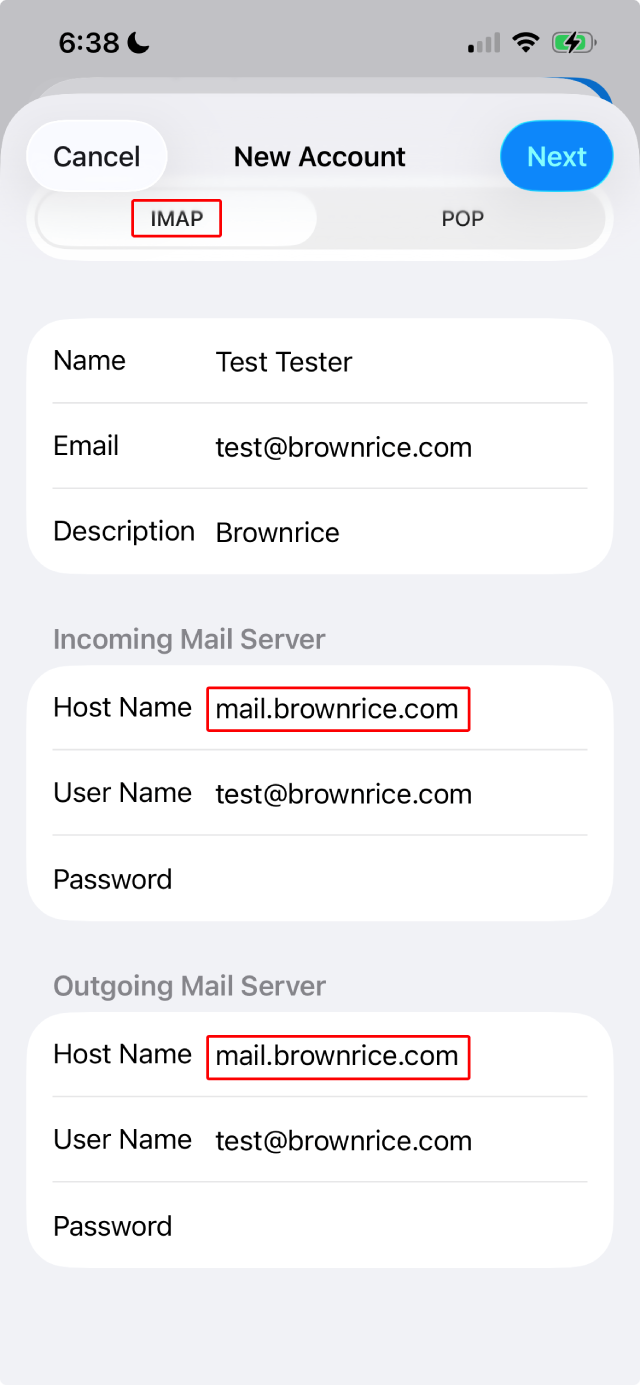
- Scroll down to Outgoing Mail Server and in the Host Name field, enter mail.brownrice.com.
- In the User Name field, enter your full email address.
- In the Password field, enter your password (case-sensitive).
NOTE: The User Name and Password fields default to optional. This is NOT true; these fields are not optional and must be entered.
- Scroll down to Outgoing Mail Server > SMTP and select mail.brownrice.com.
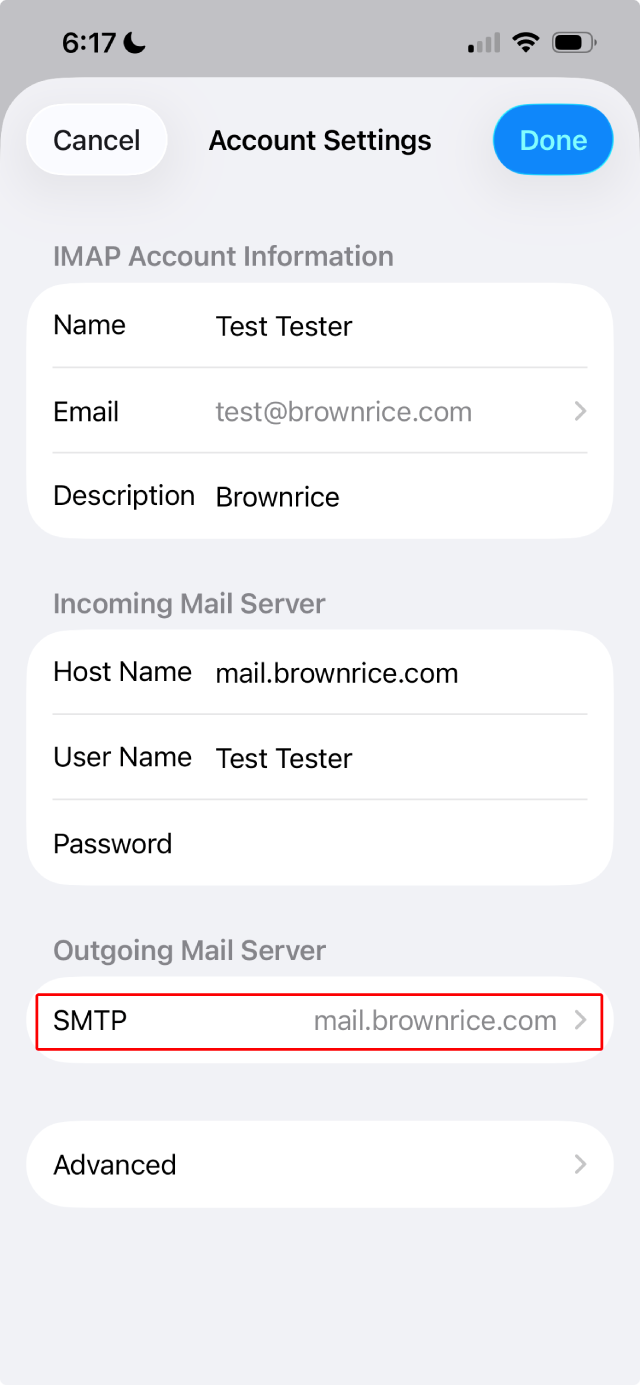
- Add your Full Email Address and Username (it is not optional).
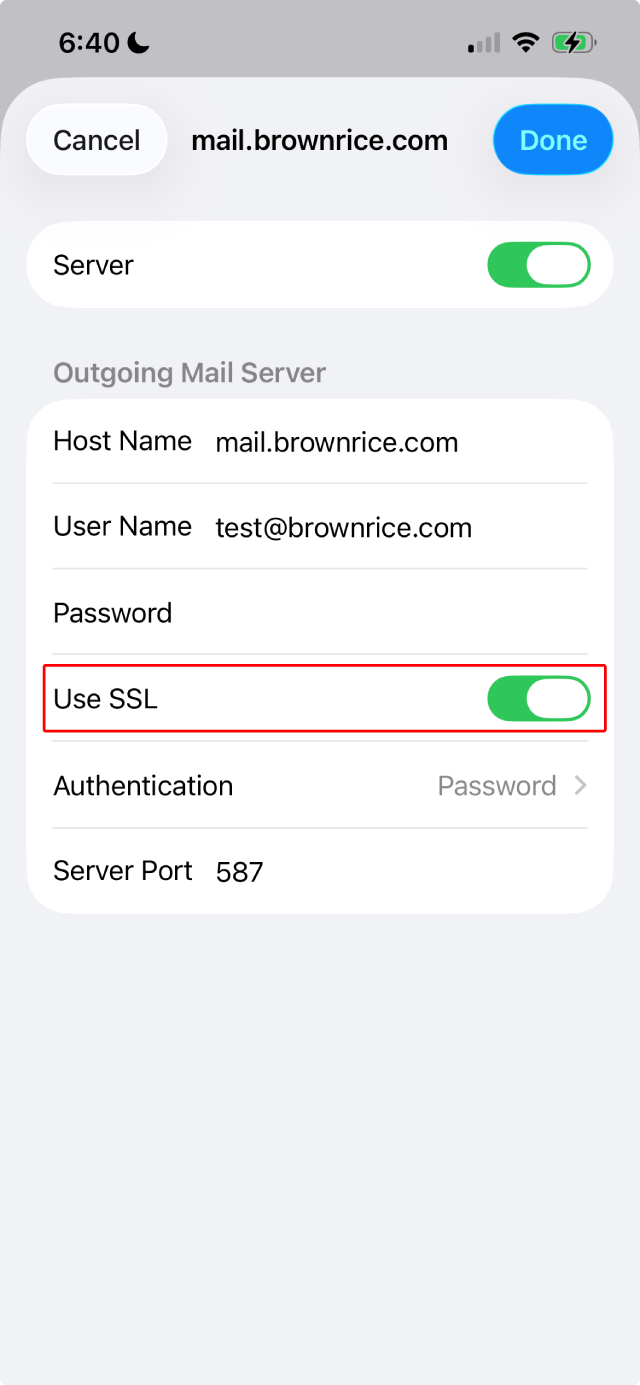
- Add email Password (it is not optional).
- Set Use SSL to On.
- Set Authentication to Password.
- Select Done.
Voila! Setup is complete!
Properly sort Drafts, Deleted, and Sent mail on the iPhone
Once you have set up your email, you may notice that when you try to drag email into the trash icon, it doesn't allow you to do so. If that is the case, you'll want to map your trash to the trash folder.
Configure your mobile Mail client so that Sent Mail, Deleted Mail, Drafts, and Junk are reflected properly after syncing back between the iPhone client, webmail, and any other desktop clients you may have.
- Open Settings > Apps > Mail > [Your Brownrice IMAP account] > Advanced.
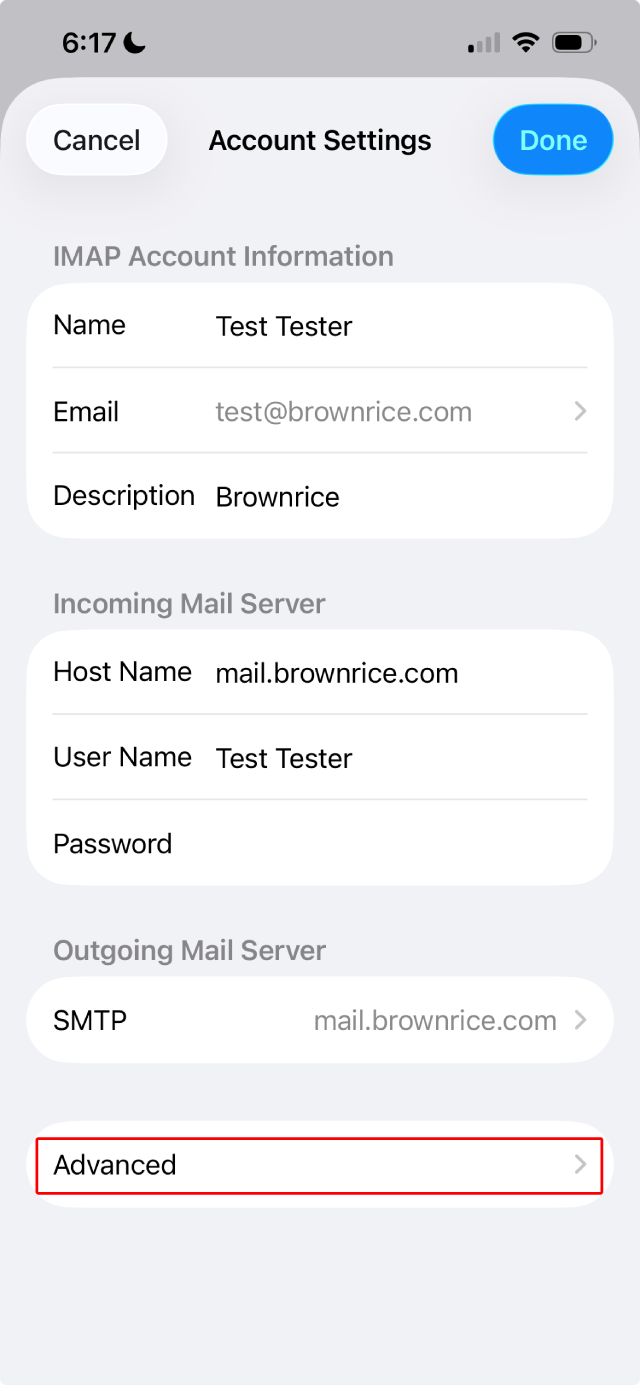
- Select Sent Mailbox > On the Server > [Brownrice IMAP account] Sent. Return to the Advanced view.
- Select Drafts Mailbox > On the Server > [Brownrice IMAP account] Drafts. Return to the Advanced view.
- Select Deleted Mailbox > On the Server > [Brownrice IMAP account] Trash. Return to the Advanced view.
That's all the magic there is to it!
You are now ready to send and receive email from your iPhone or iPad until the cows come home! Enjoy.